The Eisenhower Matrix sorts every to-do with two questions: is it important, and is it urgent? The answers put it in one of four boxes: do it now, schedule it, delegate it, or drop it. On a Mac you don’t need a special app for this. Apple Reminders can do it with tags and Smart Lists, and any to-do app with priorities and due dates can do it too.
Below: the method in a minute, how to tell urgent from important, two free setups, how to keep your Do-first list in sight, and a five-minute routine that keeps the whole thing honest.
The short answer
- Important means it moves something you care about forward. Urgent means a deadline is close or someone is waiting. Ask the two questions separately.
- Do first: urgent and important. Schedule: important, not urgent. Delegate: urgent, not important. Drop: neither.
- In Apple Reminders, tag to-dos
#urgentand#important, then build a Smart List for each box. This needs updated iCloud reminders. - In MacTodo, a priority means important and a due date means urgent. Sort Today by priority and your Do-first list sits at the top.
- Spend your planning time on the Schedule box. That’s where the important work quietly waits.
What is the Eisenhower Matrix?
It’s a two-by-two grid. One side asks whether a task is urgent, the other whether it’s important, and each of the four boxes comes with its own instruction:
| Box | Urgent? | Important? | What to do | Example |
|---|---|---|---|---|
| 1. Do first | Yes | Yes | Do it today, yourself | Fix the bug customers are hitting |
| 2. Schedule | No | Yes | Pick a day for it | Start the course you keep meaning to take |
| 3. Delegate | Yes | No | Hand it off, batch it, or keep it short | Book the meeting room for Thursday |
| 4. Drop | No | No | Delete it, or say no | Re-sort your bookmarks again |
The name comes from a 1954 speech in which Dwight D. Eisenhower said he had two kinds of problems, the urgent and the important. He credited the idea to an unnamed former college president. Stephen Covey later drew it as a four-box grid in The 7 Habits of Highly Effective People (1989), the version most people use today. Nobody knows whether Eisenhower ever drew the grid himself, and it doesn’t matter. The questions work.
The point isn’t the grid. It’s noticing that urgent things shout and important things wait quietly, so without a system the urgent ones win every day.
Urgent vs important: how do you tell them apart?
Important means it moves something you care about forward: your goals, the real results of your work, your health, the people close to you. Urgent means a deadline is close, or someone is waiting on it right now.
In the moment the two feel the same, which is the whole problem. A few questions help:
- Would it matter in a month if this never got done? If not, it isn’t important, however loud it is.
- Whose deadline is it? Someone else’s rush can be urgent for them and still not important for you.
- Is there a real date? If you can’t name one, it isn’t urgent yet. Give it a date or let it wait.
- Could someone else do it just as well? If yes and it’s urgent, it belongs in Delegate.
What typically lands in each box
- Do first: a tax filing due this week, a client deliverable due today, a broken laptop the day before a presentation.
- Schedule: exercise, a weekly review, learning a skill, a dentist checkup, planning next quarter.
- Delegate: most meeting requests, routine replies, bookings and orders, small favors someone else could do.
- Drop: busywork that only feels productive, newsletters you never read, “someday” ideas you’ll never start.
Things move between boxes. An important task you keep putting off becomes urgent as its deadline gets close. That’s the best reason to schedule box 2 early, while it’s still calm.
How do you set up the Eisenhower Matrix in Apple Reminders?
Reminders doesn’t draw a grid, but tags and Smart Lists give you four clean lists. Both need updated iCloud reminders, so this won’t work if you use Reminders without iCloud.
- Tag each reminder. Type
#urgentor#importantin its title or notes and choose the tag, or use the tag button and click New Tag the first time (Apple’s tagging steps). A Do-first reminder gets both tags. - Scroll to the Tags section at the bottom of the sidebar. Click
#importantand#urgent, choose All Selected from the menu at the top of the Tags section, then choose File › Create Smart List. Name it “Do first”. - For “Schedule”, click
#importantonce to include it and#urgenttwice to exclude it, then create a Smart List the same way. - For “Delegate”, include
#urgentand exclude#important. - Anything with neither tag is your Drop box. Look over untagged reminders once a week and delete what you can.
A nice side effect: reminders you add straight to a Smart List made from tags get those tags, so adding to “Do first” tags the reminder for you.
Prefer flags and dates? Custom Smart Lists can filter by tags, date, time, priority, flag, location, and list. Use High priority or a flag for important and a date filter for urgent, if that fits how you already work.
How do you set up the Eisenhower Matrix in MacTodo?
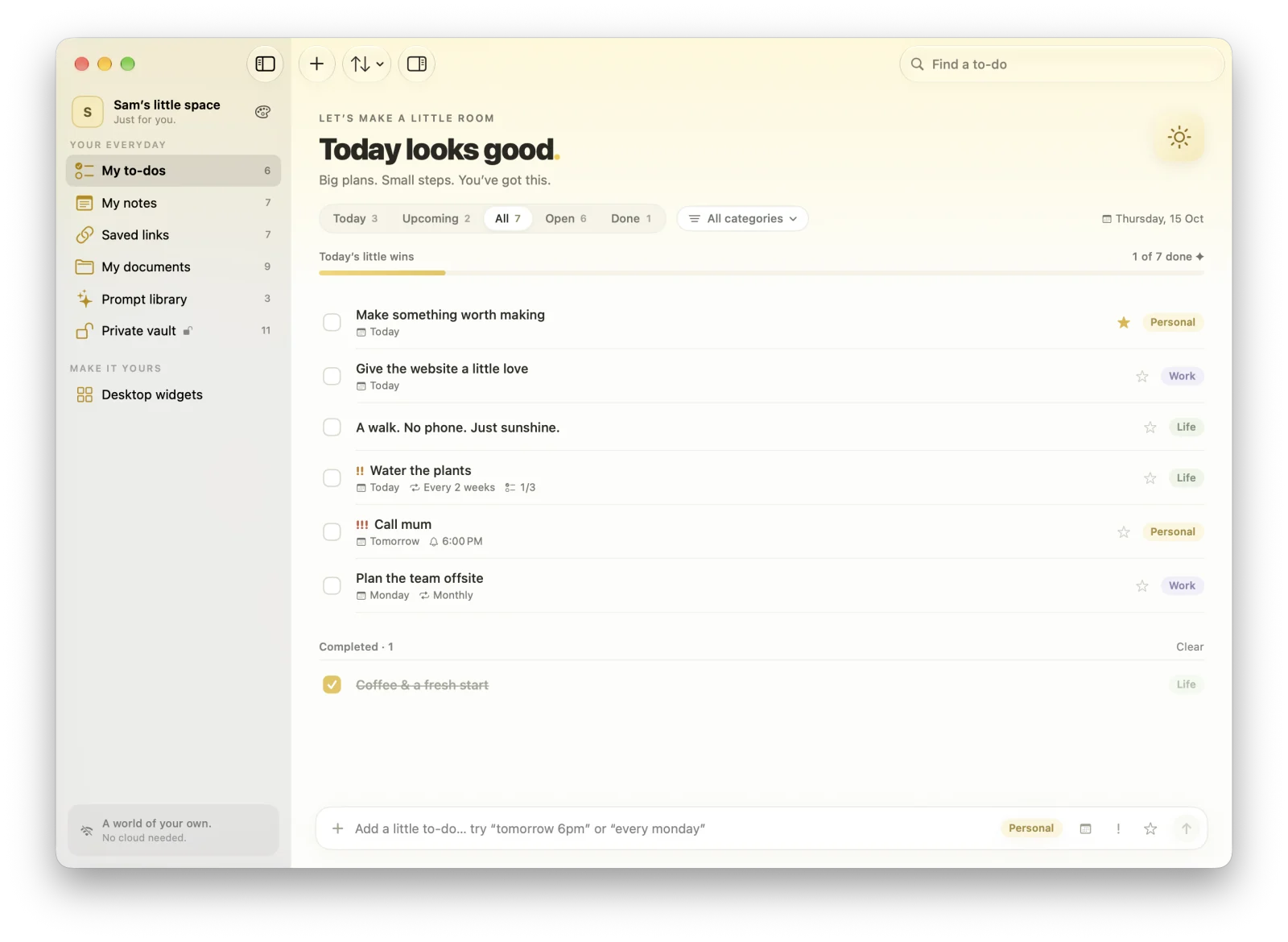
MacTodo’s to-do list is free and has the two things the matrix needs: a priority and a due date. Use the priority for importance and the due date for urgency.
Priority for important, due date for urgent
- Important: give it a priority.
!!!is very important,!!is important, and!is minor. No priority means not important. - Urgent: it’s due today, or it’s overdue. Those to-dos land in the Today view. Anything due later waits in Upcoming until its day comes.
You can set both as you type. Finish the budget draft friday !!! adds a high-priority to-do due Friday, and little chips show what MacTodo understood. Then read your four boxes like this:
- Do first: open Today and sort by priority. The
!!!and!!to-dos at the top are box 1. Today includes anything overdue, too. - Schedule: open Upcoming, which groups dated to-dos by day. Your important ones there are box 2. An important to-do with no date belongs here as well, so give it one.
- Delegate: back in Today, to-dos with
!or no priority sink to the bottom. Hand them off, batch them, or give them ten minutes, not your morning. - Drop: open the Open view and sort by priority. To-dos with no priority collect at the bottom, and the undated ones are your Drop candidates. Deleted to-dos wait in Recently Deleted for 30 days if you change your mind.
Or give each box its own category
If you’d rather see four separate lists, make each box a category. In MacTodo › Settings › To-dos, add categories named Do, Schedule, Delegate, and Drop. Then type #do, #schedule, and so on as you add to-dos, and use the category filter above your list to look at one box at a time. While a category is picked in the filter, new to-dos you add there go straight into it.
The catch: a to-do has one category, so this replaces categories like Work and Home. If you already rely on those, stick with priorities and dates.
Steps and repeats keep box 2 moving
Big Schedule items stall because they’re vague. Open the inspector (Return or double-click) and break the to-do into steps. For habits that live in box 2, like exercise or a weekly review, add a repeat: Weekly review every friday !! comes back each week after you check it off.
In MacTodo: Everything in this setup is in MacTodo’s free version: priorities, due dates, repeats, steps, categories, Today and Upcoming, sorting, the menu bar, and widgets. No account, and it all stays on your Mac. Download MacTodo if you’d like to try it.
How do you keep your Do-first list in sight?
A matrix you have to go looking for stops working by Wednesday. Keep box 1 where you’ll see it without trying.
In MacTodo
- The menu bar window shows today’s open to-dos and a quick-add field. One click and box 1 is in front of you.
- The My little to-dos widget lists your open to-dos in your own order, and you can check them off right on the desktop. In the Open view with Manual sorting, drag your Do-first to-dos to the top so they’re the ones the widget shows.
- The Up next widget shows your next dated to-dos, a handy view of what’s coming from box 2.
MacTodo has twelve widgets in all. Here’s more on its to-do widgets for your Mac desktop.
In Apple Reminders
Apple’s guide says each Reminders widget can show a different list, and you can check reminders off right in the widget. Add one, Control-click it, and choose its Edit option to pick the list it shows. Your Do-first Smart List is the one to pick, if your version offers it there.
To add any widget, Control-click the wallpaper, choose Edit Widgets, find the app, drag a widget onto the desktop, and click Done. Our guide to putting a to-do list on your Mac desktop covers the details, including widgets that turn grey.
A 5-minute daily Eisenhower routine
The matrix only works if you sort things as they arrive. This takes about five minutes each morning:
- Empty your head. Add everything that’s nagging you, without sorting yet. In MacTodo,
⌃⌥Spaceopens quick add over any app. - Ask the two questions of each new to-do: important? urgent? Set the priority and the date, or the tags.
- Pick one to three Do-first to-dos. If box 1 has ten things in it, some of them aren’t really important. Be strict.
- Give one Schedule to-do a real day this week. This is the step that changes things over time.
- Clear box 3 fast: send the message that hands it off, or batch the small stuff into one short block.
- Delete one thing from box 4.
Once a week, say on Friday, look at the whole list. Move things between boxes, give undated important to-dos a date, and drop what’s gone stale. In MacTodo you can select several to-dos, Control-click, and change their priority, due date, or category in one go.
Are there dedicated Eisenhower Matrix apps for Mac?
Yes, if you want an actual four-box grid on screen. Two worth a look:
- Priority Matrix by Appfluence is built entirely around the four quadrants, with sync across devices and calendar integrations. It’s a free download with paid subscriptions, so check the current price in the App Store.
- TickTick is a general to-do app with a built-in Eisenhower Matrix view that syncs to your phone. Its pricing page lists the matrix on both the free plan and Premium, with more on Premium.
The Mac App Store has smaller single-purpose matrix apps, too. Check whether each is a native Mac app or an iPad app running on Apple silicon, and whether it syncs.
When is a dedicated app the better choice? When you think visually and want to drag tasks between boxes, when you need the matrix on your iPhone as well, or when a team shares it. For one person on one Mac, priorities and dates in an app you already open every day tend to stick better. Still choosing? Here’s how to pick a to-do app for Mac.
Common Eisenhower Matrix mistakes
- Everything is important. If more than a handful of to-dos sit in box 1, your bar is too low. Ask the one-month question again.
- Living in box 1. If every day is a fire, you’re skipping box 2. Most fires are box 2 work that waited too long.
- Treating Delegate as “ignore”. If there’s no one to hand it to, batch it and give it a strict time limit.
- Never dropping anything. A list that only grows stops being trusted. Deleting is part of the method.
- Sorting once and never again. Boxes change as dates get closer. The weekly look is what keeps the matrix true.
- Over-engineering it. Four boxes, two questions. If sorting a to-do takes longer than doing it, just do it.