Every Mac comes with a sticky-notes app called Stickies. Open it, choose File › New Note, and a little colored note appears on your desktop. Choose Window › Float on Top and it stays above your other windows while you work.
There are two catches: Stickies only shows notes while the app is running, and it has no checkboxes. This guide covers both, plus how to make your notes survive a restart, show on every desktop, and when Notes or a desktop widget is the better fit.
The short answer
- Stickies is the Mac’s built-in answer to Sticky Notes on Windows. You’ll find it in your Applications folder.
- Choose Window › Float on Top to keep a note above other windows, and Window › Translucent to see through it.
- Notes only appear while Stickies is open. Add Stickies to your login items so they come back after every restart.
- Stickies makes bulleted lists, not checkboxes. For a list you can tick, use a checklist in Notes or a sticky-notes app.
- On macOS 14 Sonoma or later, a Notes widget can keep a note or a folder on your desktop with no app to keep open.
Does Mac have sticky notes like Windows?
Yes. Windows has Sticky Notes, and the Mac has Stickies, a small app that has come with macOS for many years. Each note is its own little window in a soft color. You type straight into it and everything saves automatically, so there’s no Save button to forget.
Stickies lives in your Applications folder. The quickest way to open it is to press ⌘Space, type “Stickies”, and press Return. Apple’s Stickies User Guide covers every menu if you want the full tour.
Stickies is a Mac app, and there’s no Stickies app for iPhone. If you want the same note on your phone, use Notes instead, which can sync through iCloud. You can move everything across in one go with File › Export All to Notes: Notes files your stickies into folders by color, and Stickies keeps its own copies.
How do you create a sticky note in Stickies?
- Open Stickies from your Applications folder or with Spotlight.
- Choose File › New Note.
- Type your note. It saves as you go.
- Pick a color from the Color menu.
- Drag the note by its title bar to where you want it, and drag an edge to make it bigger or smaller.
You can change the font with Font › Show Fonts, and drag pictures or PDFs into a note. Once a note looks the way you like, choose Window › Use as Default so new notes start with the same look.
Lots of notes? Window › Arrange By lines them up neatly. Double-click a note’s title bar to collapse it to a thin strip, and double-click again to open it. Hover over the title bar to see when the note was created and last edited.
How do you keep a sticky note on top?
By default, a sticky note behaves like any other window. Click into Safari and the note slips behind it. To keep one in view:
- Click the note you want to keep visible.
- Choose Window › Float on Top. The note now stays above your other windows, even when you switch apps.
- If it covers what you’re working on, choose Window › Translucent so you can read through it.
- Repeat for any other note you want floating. The setting applies to the note you selected.
Two limits are worth knowing. Floating notes don’t show over apps in full screen, so if a note vanishes when you go full screen, that’s why. And with Stage Manager, people in Apple’s community report there’s no reliable way to keep a sticky note visible across app groups.
How do you keep Stickies on your desktop after a restart?
This is the part that trips most people up. When Stickies is closed, its notes don’t appear on your desktop. Nothing is deleted; the notes are simply hidden until the app opens again. So the fix is to make Stickies open every time you log in.
- Open System Settings and click General in the sidebar.
- Click Login Items & Extensions. On macOS 14 Sonoma it’s called Login Items.
- Under Open at Login, click the Add button (+), choose Stickies, and confirm.
Prefer the Dock? Keep Stickies in your Dock, Control-click its icon, and choose Options › Open at Login. Either way, your notes are back on screen as soon as you log in.
Show your notes on every desktop
If you use more than one desktop (Spaces), your notes may only show on one of them. To see them everywhere, Control-click Stickies in the Dock and choose Options › All Desktops.
Why did your sticky notes disappear?
Notes that seem to vanish are almost always hidden, not lost. Check these in order:
- Stickies isn’t running. Open it again and your notes come back. Add it to your login items so this doesn’t happen after the next restart.
- They’re on another desktop. Swipe between desktops, or choose Options › All Desktops from Stickies’ Dock icon.
- You’re in a full-screen app. Notes don’t float over full-screen windows. Leave full screen to see them again.
- They’re behind other windows. Click Stickies in the Dock to bring its notes forward, then use Window › Float on Top on the ones that matter.
- A note is collapsed. A note shrunk to a thin bar is collapsed. Double-click its title bar to open it.
- It was closed. The small box in a note’s top-left corner is how you delete a note, so it’s easy to hit by mistake. Be gentle with it.
Before a big macOS update or a move to a new Mac, choose File › Export All to Notes. It copies every sticky into the Notes app, sorted into folders by color, and your stickies stay exactly where they are.
Can you make a checklist in Stickies?
Not a real one. Stickies can make bulleted lists: press ⌥Tab to start a list, Tab and ⇧Tab to change the indent, and Return twice to finish. But there are no boxes to tick, so the usual trick is to delete a line once it’s done.
If you want checkboxes, you have two good options:
- Notes. Click at the start of a line, then click the Checklist button in the toolbar. Checklists work in iCloud notes and in notes stored on your Mac. Float that note on top (see below) and you have a sticky note you can tick.
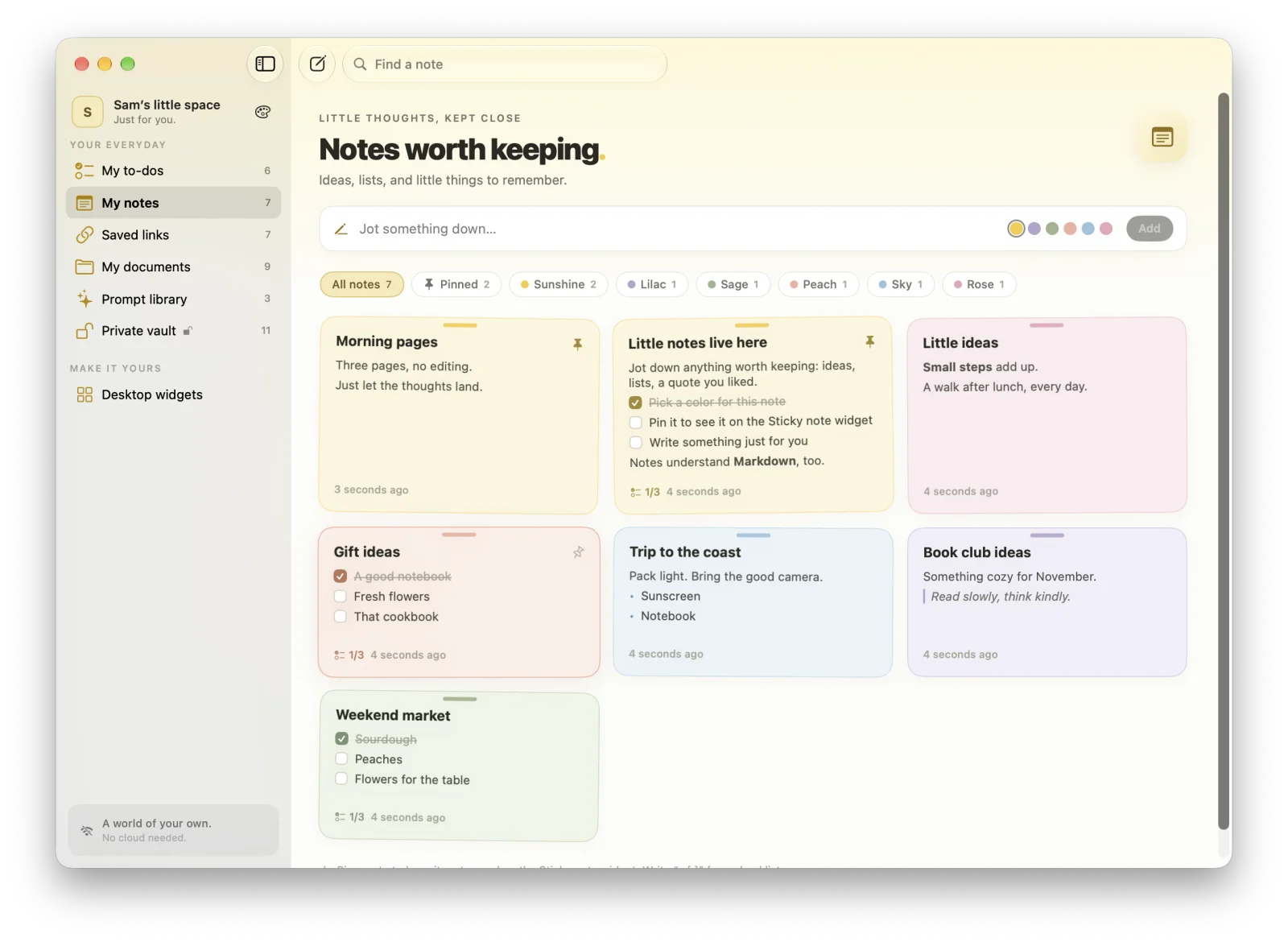
- A sticky-notes app with checklists. In MacTodo’s sticky notes, any line that starts with
- [ ]becomes a checkbox you can tick right on the card. Notes are part of MacTodo Pro, a one-time purchase.
Other ways to pin a note to your Mac desktop
Float a note from the Notes app
Notes can keep a single note on top, too. In recent versions of macOS, double-click a note in the list (or Control-click it and choose Open Note in New Window), then choose Window › Keep on Top in the new window. Older versions call it Float on Top. Closing the window clears the setting, so you’ll turn it on again next time.
Unlike Stickies, Notes can sync to your iPhone through iCloud, has real checklists, and can lock a note with your login password.
Jot a Quick Note
For a thought you need to catch right now, press Fn-Q (the Globe key and Q on newer keyboards), or move the pointer to the bottom-right corner of the screen, the default hot corner. A small note opens over whatever you’re doing and saves to the Quick Notes folder in Notes. In Safari, Share › Add to Quick Note clips the page you’re on. Apple’s Quick Note guide has more.
Put a note widget on your desktop
A widget is the closest thing to a note that’s simply always there, with no app to keep running. On macOS 14 Sonoma or later, the Notes widget can show a single note or a whole folder on your desktop. Click it to open that note in Notes.
- Control-click an empty spot on your wallpaper and choose Edit Widgets.
- Search for “Notes”, then drag the Note widget onto your desktop (or click it to add it).
- Click Done.
- Control-click the widget and choose its Edit option to pick which note it shows.
To change the text, click the widget and edit the note in Notes. If the widget looks grey or faded, go to System Settings › Desktop & Dock and set Dim widgets on desktop to Never. Apple’s widgets guide covers sizes and Notification Center, and our MacBook Neo widget layouts work on any Mac.
In MacTodo: The Sticky note widget shows your latest pinned note, or any note you pick with Edit Widget, in small, medium, or large. It works with the notes board in MacTodo Pro, next to the free to-do widgets for your Mac desktop.
Stickies vs Notes vs a sticky-notes app
| Stickies | Notes | MacTodo notes (Pro) | |
|---|---|---|---|
| Price | Free, built in | Free, built in | One-time Pro purchase |
| Stays on top | Yes, Float on Top | Yes, Keep on Top per window | No, but a widget shows a pinned note |
| Desktop widget | No | Yes, a note or a folder | Yes, your pinned note or any note |
| Checkboxes | No, bulleted lists only | Yes, checklists | Yes, ticked right on the card |
| On your iPhone | No | Yes, with iCloud | No, stays on your Mac |
| Best for | Scraps you glance at all day | Notes you need everywhere | A tidy board of notes next to your to-dos |
Short version: start with Stickies for little scraps you look at all day. Move to Notes when you want checklists or the same note on your phone. Try a dedicated app when you want a colorful board that lives next to your to-do list.
If what you really want on screen is a to-do list, see how to put a to-do list on your Mac desktop, or keep it one click away with a menu bar to-do list.