To organize AI prompts, move them out of your chat history into one searchable place, give each a clear name, one category, and a few tags, and write the parts that change as {{placeholders}}. Then spend ten minutes a week pruning, so only the prompts that earn their keep stay.
That’s the whole system. It works the same whether you use ChatGPT, Claude, Gemini, or all three, and you can set it up on a Mac with tools you already have. Below you’ll find the steps, the best places to store prompts, and five starter templates to copy.
The short answer
- Save prompts outside your chat history, in one place you can search.
- Give each prompt a verb-first name, one category, and two or three tags.
- Write the parts that change as
{{placeholders}}, so one prompt covers many jobs. - Keep passwords, keys, and private details out of prompt text, wherever you store it.
- Prune weekly: fold in improvements, merge near-duplicates, and delete what you don’t use.
Why is chat history a bad prompt library?
Chat history is good at remembering conversations and bad at remembering prompts. A few reasons:
- It’s sorted by date, not by job. The prompt you need is filed under whatever day you happened to write it.
- Search finds answers, not prompts. Look for “summary” and you get every reply that mentions a summary.
- The good version hides mid-thread. Your best prompt is often the third rewrite, after two replies that missed the point.
- It’s tied to one tool. A prompt in one assistant’s history doesn’t help when you open another.
Most assistants also let you save standing instructions, such as custom instructions, project instructions, or reusable custom assistants. The names and plans change often, but they’re worth using for context that applies to every chat in one tool. Anthropic, for example, suggests that if you keep retyping the same prompt in Claude, you capture it as a Skill or as project instructions (Anthropic’s guide to Skills).
Saved instructions don’t travel between tools, though, and they’re awkward for the task prompts you reach for a few times a week. That’s the job of a prompt library.
A simple system: one name, one category, a few tags
Elaborate systems collapse under their own weight. This one has four parts, and you can set it up in an afternoon.
Name each prompt after the job it does
Start titles with a verb: “Summarize a meeting transcript”, “Rewrite in plain English”, “Review code for bugs”. You’ll scan plain titles faster than you’ll remember clever ones, and search works better too.
Give it one category and two or three tags
A category answers “which part of my life is this for?”. Tags answer “what does it do?” and “what does it need?”. Keep categories few and stable, and let tags be the flexible layer.
- Categories: Writing, Work, Code, Research, Learning, Personal.
- Tags for the task: summarize, rewrite, brainstorm, critique, explain, extract.
- Tags for the context: email, slides, meeting, long-doc, needs-file.
Add a one-line note
Under each prompt, write when to use it and what you learned: “Best for transcripts under an hour” or “Ask for a table if the reply rambles.” Future you will thank you.
Keep versions, not variants
When you improve a prompt, replace the old text and add a version line at the bottom, like “v3, Oct 2026: added a word limit.” Keep a second copy only when the two versions do genuinely different jobs.
Turn good prompts into templates with placeholders
A prompt template is a prompt with blanks. The fixed part holds what makes the prompt good: the role, the format, the rules. The blanks hold what changes each time: the topic, the reader, the text to work on.
Mark the blanks with double curly braces, like {{audience}}. They stand out, they rarely appear in normal writing, and they’re easy to spot before you press Return.
- Find a prompt that worked well, including any follow-up corrections you made in the chat.
- Fold those corrections into the prompt itself, so it works the first time.
- Replace every detail that will change next time with a named placeholder, such as
{{topic}}or{{word limit}}. - Put the material to work on last, under a clear label like “Text:”, so it’s easy to paste.
- Test it once with new details. If you had to fix the reply, fix the template.
Here’s the difference. Before: “Write a friendly email to my landlord about the broken heater, keep it short.” After: “Write a {{tone}} email to {{recipient}} about {{issue}}. Keep it under {{word limit}} words, lead with the request, and end with one clear next step.”
One template now covers the landlord, your manager, and the school office. Name placeholders so they explain themselves: {{recipient}} beats {{x}}.
Where should you store AI prompts on a Mac?
Any place works if it’s searchable, close at hand, and the only place. Here’s how the usual options compare.
| Option | Good for | Watch out for |
|---|---|---|
| Apple Notes | A free, searchable home: one note per prompt, a folder, and tags | No fill-in for placeholders, so you copy and edit by hand |
| Text Replacements | Short snippets you type often, triggered by an abbreviation | A small editing field, and not available in every app |
| Shortcuts | A few prompts you use every day, from the menu bar or a key | Each prompt is a shortcut to build and maintain |
| A text file or document | Long prompts and easy sharing | Finding and copying one prompt gets slow as it grows |
| A prompt library app | Tags, favorites, placeholders, and one-click copy | Another app to learn, and some cost money |
Notes is the best free starting point for most people. Make a folder called Prompts, give each prompt its own note with the title as the first line, and add tags like #summarize at the bottom. If you like seeing a few prompts at a glance, here’s how to keep sticky notes on your Mac desktop.
Text Replacements live in System Settings › Keyboard › Text Replacements. Type an abbreviation like ;sum and macOS swaps in the full text. They’re great for short lead-ins (“Explain this like I’m new to the topic:”), but long prompts are awkward to edit there, and Apple notes they aren’t available in all apps.
Shortcuts can hold a prompt in a Text action followed by Copy to Clipboard. Pin the shortcut to the menu bar or give it a keyboard shortcut, and your daily prompt is one step away.
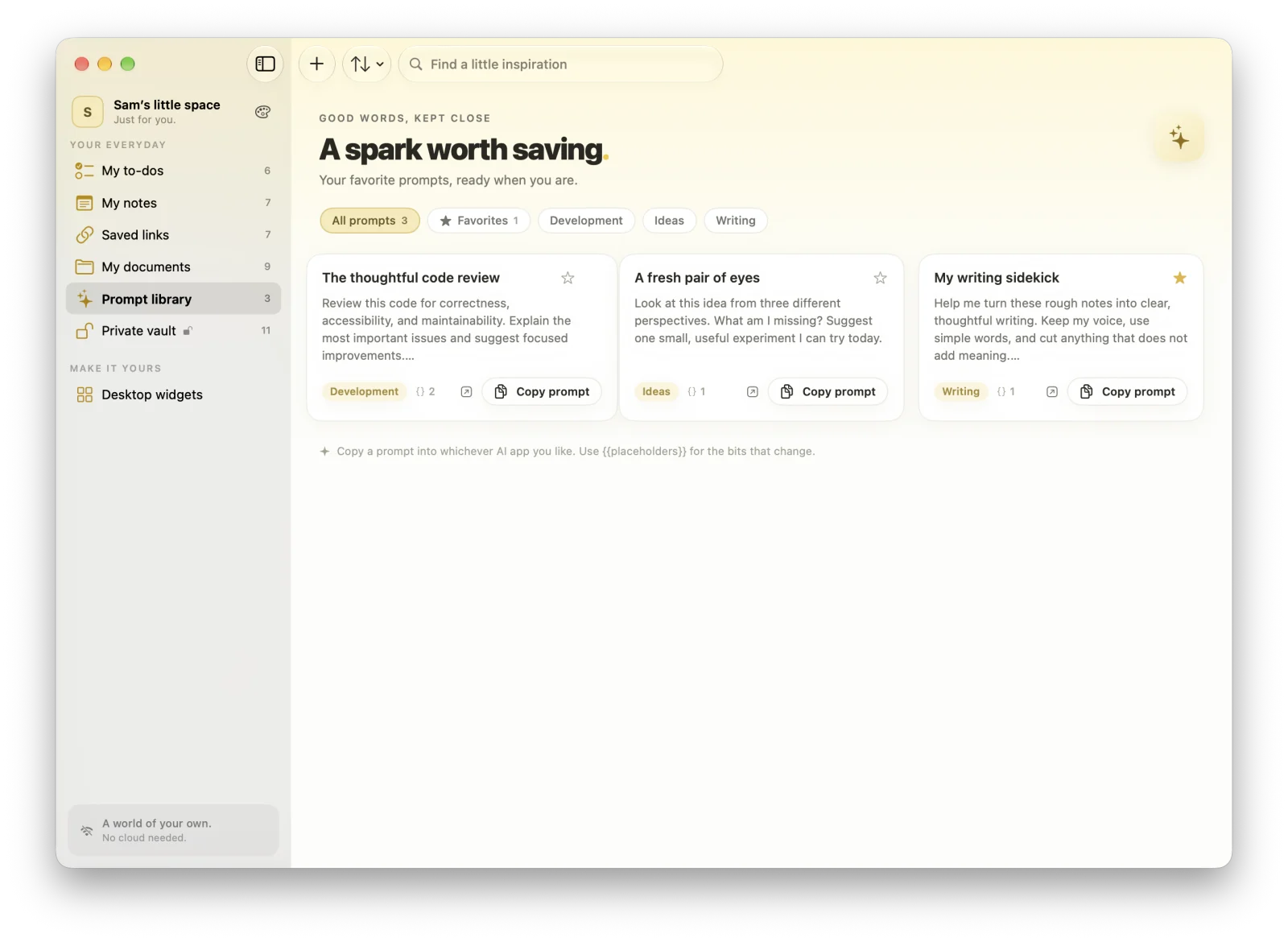
In MacTodo: The prompt library is part of MacTodo Pro. Each prompt is a card with tags, favorites, search, and usage counts. Copy prompt puts it on your clipboard, and prompts with {{placeholders}} open a fill-in sheet with a live preview first. There are Open in buttons for ChatGPT, Claude, Perplexity, and Gemini, and your prompts stay on your Mac.
How to get prompts into ChatGPT, Claude, and Gemini fast
Speed decides whether you use your library at all. If fetching a prompt takes longer than retyping a worse version, you’ll retype it. These habits work with any assistant, in the browser or a desktop app.
- Copy, then paste. The clipboard is the one thing every AI tool understands. A library that copies in one click beats one that opens a document.
- Give your library a keyboard path. Spotlight (⌘Space) searches your notes, so verb-first titles like “Summarize a meeting” pay off twice.
- Bring back today’s prompt. On macOS Tahoe 26, Spotlight keeps a clipboard history: press ⌘Space, then ⌘4. It holds items for 8 hours by default, which is handy, but it’s no substitute for a library.
- Check your assistant’s Mac app. Some assistants’ desktop apps offer a system-wide shortcut that opens a small chat window over whatever you’re doing. Look in the app’s settings.
- Keep standing context in the tool and task prompts in your library. Your role, writing style, and usual format belong in an assistant’s saved instructions. The prompt that drafts a cover letter belongs in your library.
One more tip: paste the template, fill in the blanks, and only then paste your material at the end. Filling blanks after a long paste means scrolling to find them.
A starter library you can copy
Start small. Ten prompts you actually use beat a hundred saved from a list online. Here are five templates that cover a lot of everyday work, each with a category and a tag:
- Summarize for a busy reader (Writing · summarize): “Summarize the text below for {{audience}} in {{number}} bullet points. Lead with the main point or decision, and flag anything that needs action. Text:”
- Rewrite in plain English (Writing · rewrite): “Rewrite the text below so {{reader}} understands it on first read. Use short sentences, keep every fact, and stay under {{word limit}} words. Text:”
- Draft a reply (Work · email): “Draft a {{tone}} reply to the message below. I want to {{goal}}. Keep it under 120 words and end with one clear next step. Message:”
- Pressure-test an idea (Ideas · critique): “Here’s an idea: {{idea}}. Give me the three strongest objections, then one small experiment I could run this week to test it.”
- Explain a concept (Learning · explain): “Explain {{concept}} to someone who already knows {{background}}. Use one everyday analogy, then a short example, then three questions to check my understanding.”
Notice the pattern: a job, a reader, a format, a limit, then the material. Most strong prompts share those bones, so it’s a good checklist when you write new ones.
How to keep your prompts private
Where your library lives and where your prompts go are two separate questions.
Your library. A prompt collection in a cloud service sits on that company’s servers, tied to your account. A library kept only on your Mac, in a local app or a file, stays with you. That matters more than it seems, because good prompts often mention clients, projects, or how your team works.
What you send. Every prompt you paste into an assistant goes to that provider, wherever you stored it. A local library doesn’t change that, so check each tool’s data and history settings and decide what you’re comfortable sharing.
- Keep passwords, API keys, and personal details out of templates. Use a placeholder, and fill it in only when you truly must.
- Store secrets in a password manager, not a prompt note. If you’re setting one up, here’s how two-factor codes work in Apple Passwords.
- Before you share prompts with a colleague, read them once for names and internal details.
A weekly habit: prune, merge, and version
A prompt library turns into a junk drawer if you only ever add to it. Ten minutes at the end of the week keeps it useful:
- Add any prompt that worked this week, with a verb-first name, a category, and tags.
- Fold improvements into the original and update its version line.
- Merge near-duplicates into one template with an extra placeholder.
- Delete prompts you haven’t used in a couple of months. If you miss one, you’ll write a better one.
- Star or pin your top five so they’re always first.
If your tool shows how often you use each prompt, let that guide the cleanup, because usage beats gut feeling. MacTodo keeps a usage count for each prompt, and deleted prompts wait in Recently Deleted for 30 days, so pruning is low-risk.