macOS doesn’t have a menu bar to-do list built in, and Apple Reminders has no menu bar icon. To keep your list one click away, add a small menu bar app: MacTodo and Reminders MenuBar are free, while TickTick and Due add sync with your iPhone.
If you only need to add things quickly, macOS Tahoe 26 and later can create a reminder straight from Spotlight. Below you’ll find how each option works, what it costs, and how to fix a menu bar icon that won’t show up.
The short answer
- Apple Reminders has no menu bar item. On macOS Tahoe 26 and later, Spotlight can add a reminder without opening the app.
- Want your Apple Reminders in the menu bar? Reminders MenuBar is free, open source, and stays in sync with Reminders.
- For a free list that stays on your Mac, MacTodo adds a menu bar list,
⌃⌥Spacequick add, and desktop widgets. ToDoBar is the bare-bones pick. - Need the same list on your iPhone? TickTick and Due have menu bar access and sync across devices.
- Icon missing on macOS Tahoe or later? Check System Settings › Menu Bar › Allow in the Menu Bar.
Can you put Apple Reminders in the menu bar?
Not directly. Reminders isn’t one of the controls you can add in System Settings › Menu Bar, and the app has no menu bar icon of its own. There are three good workarounds, depending on whether you want to see your list or just add to it.
Add a reminder from Spotlight
Since macOS Tahoe 26, Spotlight can run actions from your apps, and making a reminder is one of them. It’s the fastest built-in way to capture a task without opening Reminders.
- Press
⌘Spaceto open Spotlight. Press⌘3to jump straight to Actions. - Start typing “reminder” and choose the Reminders action that adds a new reminder.
- Type your reminder and press Return.
- To make it even faster, assign a Quick Key from the results. Apple’s own example was
arfor Add Reminder.
Spotlight was redesigned again in macOS 27 around “Search or Ask”, so what you see there may differ a little from these steps.
Add a Shortcut to Control Center or a key
In the Shortcuts app, build a one-step shortcut with the Reminders action Add New Reminder. You can give it a keyboard shortcut that works in any app, and on recent versions of macOS you can add it to Control Center and drag it into the menu bar. Apple’s guide to running shortcuts while you work has the steps.
Use a menu bar app that reads Reminders
If you want to see and tick off your Apple Reminders from the menu bar, the free, open-source Reminders MenuBar does exactly that (more below). Your reminders stay in Reminders, so they keep syncing to your iPhone through iCloud.
What makes a good menu bar to-do app?
A menu bar app lives in the strip at the top of your screen and opens in a small panel. The good ones stay out of your way until you need them. Look for:
- One click or one key. A panel that opens from the icon, plus a global shortcut that works over any app.
- Fast typing. Natural-language dates like
tomorrow 6pm, so you never fiddle with a date picker. - A glanceable icon. Today’s count, or your next task, right in the menu bar.
- Reminders that reach you. Notifications you can act on, not just a silent list.
- Clarity about your data. Local only, iCloud, or the developer’s own account. Each is fine; just know which one you’re choosing.
- A small footprint. On a MacBook with a notch, menu bar space is tight, so a compact icon matters.
For the bigger picture, see how to choose the best to-do app for Mac.
Free menu bar to-do apps
MacTodo: a menu bar list, quick add, and widgets
MacTodo is a free, native to-do app for macOS. Its menu bar window shows today’s date and progress, a quick-add field, and today’s to-dos. Press ⌃⌥Space anywhere for a Spotlight-style quick-add panel, and type the way you talk: Pay rent monthly !! #Work sets the repeat, the priority, and the category in one line.
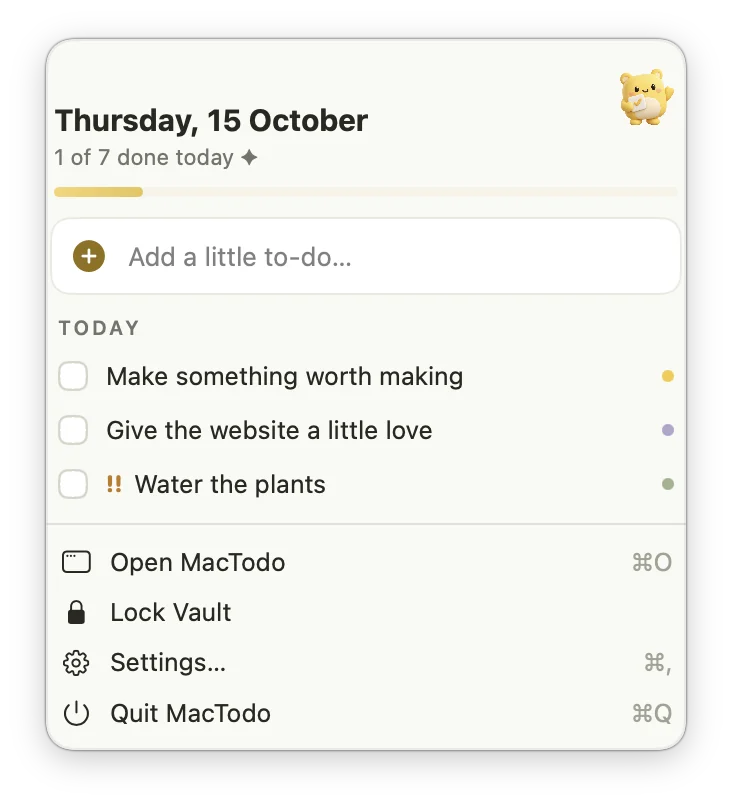
The same list shows up in to-do widgets for your Mac desktop, where you can check things off. Everything stays on your Mac with no account, and it works offline. The trade-off: there’s no iPhone app and no iCloud sync. It needs macOS 14 Sonoma or later and runs on Apple silicon and Intel Macs.
Reminders MenuBar: Apple Reminders, one click away
A free, open-source app (GPL-3.0) that puts your Apple Reminders in the menu bar. You can add reminders in natural language, including due dates, lists, and tags; mark them done; edit priorities and repeats; search; and filter by list or tag. The menu bar can show an icon, a count, or your next reminder, and a global shortcut opens the panel.
Because it reads and writes Apple Reminders directly, everything stays in sync with the Reminders app (and, through iCloud, your iPhone). Get it from the Reminders MenuBar GitHub page, or with Homebrew: brew install --cask reminders-menubar. It asks for permission to access Reminders the first time, and needs macOS 12 Monterey or later.
ToDoBar: the simplest list there is
ToDoBar, by Pavel Makhov, is a free Mac App Store app that keeps one plain list in your menu bar. Type a task, press Return, tick it off, delete it. No account, no cloud sync, no tags. A recent update added a global shortcut to open the list and an optional count next to the icon. It needs macOS 13 Ventura or later. A different, paid app is also called ToDoBar, so check the developer’s name.
One Thing: a single task, always in view
One Thing, from developer Sindre Sorhus, isn’t a list at all. It puts one task or goal as text in your menu bar, so it’s always in the corner of your eye. You can drag text onto it from your to-do app, style it with Markdown, and work with it from Shortcuts. It’s free and needs macOS 26 Tahoe; the developer’s website offers an older version for macOS 15.
Synced and paid menu bar to-do apps
TickTick: a full task manager with a menu bar view
TickTick is a cross-platform task manager with a Mac app. According to TickTick’s Mac page, ⌘⇧O opens your tasks from the menu bar and ⌘⇧A captures a task from any app. Your lists sync with TickTick’s apps for iPhone, Android, Windows, and the web through a TickTick account. The free plan covers up to 9 lists with 99 tasks each; Premium is $49.99 a year on TickTick’s site. It needs macOS 12 or later.
Due: reminders that keep nagging
Due is built around reminders you can’t ignore. Auto Snooze repeats an alert until you finish or reschedule the task, and it reads dates as you type, like “Make dinner reservation at 9am tomorrow”. It can sit in your menu bar and even hide from the Dock. On the Mac App Store it’s $14.99, which includes new features for a year; an optional Upgrade Pass ($9.99 a year) keeps new features coming after that. It syncs through your own iCloud or Dropbox account, and the iPhone app is sold separately.
Commitments: a tidy offline list, paid once
Commitments is a lightweight menu bar to-do app that works offline and, per its App Store listing, never collects your data. It supports several lists, moving tasks between them, clickable links, full keyboard control, and a shortcut to open it from any app. Try it free for 7 days, then unlock it with a one-time $4.99 purchase. It needs macOS 15 Sequoia or later.
Prices are from the US Mac App Store and the developers’ own sites on October 29, 2026. They change, so check the current price before you buy.
Which menu bar to-do app should you choose?
| App | Price | Your data | Needs | Best for |
|---|---|---|---|---|
| MacTodo | Free | On your Mac, no account | macOS 14+ | Quick add, widgets, and a private list |
| Reminders MenuBar | Free, open source | Apple Reminders | macOS 12+ | Seeing Apple Reminders at a glance |
| ToDoBar | Free | On your Mac, no account | macOS 13+ | One plain list, nothing else |
| One Thing | Free | One line of text | macOS 26+ | Focusing on a single task |
| TickTick | Free plan; Premium $49.99/yr | TickTick account, synced | macOS 12+ | The same list on every device |
| Due | $14.99, optional $9.99/yr pass | Your iCloud or Dropbox | macOS 10.14+ | Reminders that won’t let you forget |
| Commitments | 7-day trial, then $4.99 once | Offline, no data collected | macOS 15+ | Several lists, no subscription |
If your list has to live on your iPhone too, pick a synced option: Reminders MenuBar if you already use Apple Reminders, TickTick if you also use Android or Windows, or Due if persistent alerts matter most. If your list only needs to live on your Mac, MacTodo, ToDoBar, and Commitments keep everything local.
Want a private list with quick add and widgets, at no cost? Download MacTodo. For a wider look at full to-do apps, see our roundup of Apple Reminders alternatives for Mac, or put your list right on screen with a to-do list on your Mac desktop.
How do you add a task without opening an app?
A global shortcut is what makes a menu bar list feel instant. Press it over any app, type a line, press Return, and you’re back to work.
- MacTodo:
⌃⌥Spaceopens a quick-add panel over any app. You can change the shortcut in Settings. - TickTick:
⌘⇧Acaptures a task, according to TickTick’s Mac page. - Reminders MenuBar, ToDoBar, and Commitments: each has a global shortcut that opens its panel.
- Built in: the reminder action in Spotlight on macOS Tahoe 26 and later, or a Shortcuts shortcut with a key of your own.
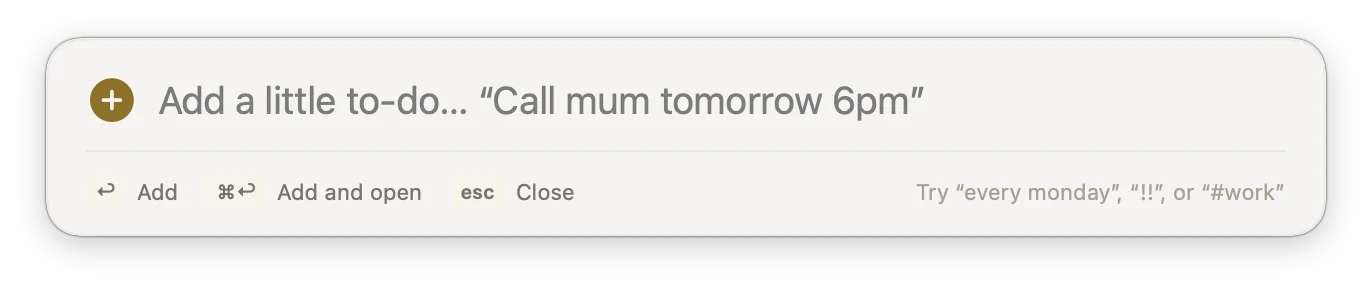
Using Things 3 as well? Its Quick Entry with Autofill also defaults to ⌃⌥Space, the same as MacTodo’s quick add. Change one of them so they don’t collide. Our Things 3 vs Apple Reminders comparison covers Things in more depth.
Why isn’t your menu bar app showing?
Installed a menu bar app and the icon never appeared? Work through these:
- It isn’t allowed. On macOS Tahoe 26 and later, open System Settings › Menu Bar and look under Allow in the Menu Bar. Make sure the app’s switch is on. Apple’s menu bar settings guide shows every option.
- It’s hidden by the notch. When the menu bar is full, macOS hides icons that don’t fit, and on MacBooks with a notch that happens sooner. Quit menu bar apps you don’t use, or hold ⌘ and drag icons to rearrange them.
- The app isn’t running. Menu bar apps only show while they’re open. Turn on launch at login in the app’s settings, or add it under System Settings › General › Login Items & Extensions (just Login Items on macOS 14).
- The icon is turned off. Some apps let you hide their menu bar icon, so check the app’s own settings too.
- The whole menu bar hides. On macOS Tahoe 26 and later, that’s Automatically hide and show the menu bar in System Settings › Menu Bar. Set it to Never to keep it in view.