The quickest way to put a to-do list on your Mac desktop is a widget. On macOS 14 Sonoma or later, Control-click the wallpaper, choose Edit Widgets, and drag the Reminders widget onto your desktop. You can check things off right on it, without opening the app.
A widget isn’t the only way, though. Below are four, from built-in to dedicated apps, with the steps for each, what each one can’t do, and how to stop your widgets from fading to grey.
The short answer
- Built in: add the Reminders widget to your desktop on macOS 14 Sonoma or later, and check off reminders right on it.
- Stickies keeps a plain-text list floating on screen, but it has no checkboxes, and your notes leave the screen whenever Stickies quits.
- Apple Reminders has no menu bar list of its own. A menu bar app keeps today’s to-dos one click away, even when windows cover the desktop.
- Widgets look grey? In System Settings › Desktop & Dock, set Dim widgets on desktop to Never (macOS Tahoe 26 and later).
- A to-do app like MacTodo puts all of it in one place: a widget you can check off, a menu bar list, and quick add from any app.
How do you add the Reminders widget to your Mac desktop?
Reminders comes with every Mac, and since macOS 14 Sonoma its widget can sit right on your desktop instead of hiding in Notification Center. These steps work the same from macOS 14 through macOS 27.
- Control-click an empty spot on your wallpaper (not a file or a window) and choose Edit Widgets.
- In the widget gallery, type “Reminders” in the search field, or click Reminders in the sidebar.
- Pick a size from the previews. Bigger sizes show more of your list.
- Drag the widget to where you want it on the desktop, or click it to have macOS place it for you.
- Click Done in the bottom-right corner of the gallery.
Each widget shows one list. To pick which, Control-click the widget, choose its Edit option, then click the highlighted list name and choose another. You can add several Reminders widgets, each with its own list and size, so Work and Home can sit side by side.
Prefer a clean desktop? Put the widget in Notification Center instead: click the date and time in the menu bar, click Edit Widgets at the bottom, and drag Reminders to the top right. Apple’s guide to Mac widgets covers both places.
What can the Reminders widget do, and what can’t it?
The Reminders widget is interactive. Click the circle next to a reminder and it’s marked complete, no window needed. Click anywhere else on the widget and Reminders opens to that list.
A few things are worth knowing before you rely on it:
- One list per widget. If you want to see two lists, add two widgets, which takes room on a smaller screen.
- Typed dates work when you add. In the Reminders app, write a date into the reminder, like “Pay bills on Saturday”, and click the suggestion to set it. No Apple Intelligence needed.
- It fades while you work. Desktop widgets can turn monochrome while an app is in front. The fix is further down.
- Some features need iCloud. Subtasks, tags, and smart lists need updated iCloud reminders, and lists in Google or Exchange accounts miss some features.
If your list also lives on your iPhone, the Reminders widget is hard to beat. It’s free, it syncs through iCloud, and it’s already on your Mac.
Can you use Stickies as a to-do list?
Yes, for a simple list. Stickies is the little yellow-note app that has shipped with the Mac for years, and it’s still in your Applications folder. Each note is a small window you can keep on screen while you work.
- Open Stickies from your Applications folder, or press ⌘Space and type “Stickies”.
- Choose File › New Note and type your list. Press
⌥Tabto start a list. - Choose Window › Float on Top so the note stays above other windows, and Window › Translucent if you want to see through it.
- Give it a color from the Color menu so your to-do note stands out from the rest.
Why do Stickies disappear?
Your notes are only on screen while Stickies is running. As Apple’s Stickies guide explains, once the app is closed, its notes don’t appear on your desktop. Notes save automatically, so quitting doesn’t lose them. It just hides them.
- To bring them back after every restart, Control-click Stickies in the Dock and choose Options › Open at Login.
- To see them on every desktop (Space), Control-click Stickies in the Dock and choose Options › All Desktops.
- They don’t show over full-screen apps, so a note won’t follow you into a full-screen browser or video.
The bigger limit is that Stickies has no checkboxes. You can delete a line when it’s done, but there are no due dates, no reminders, and nothing to tick. If you want notes that act more like a checklist, see our guide to sticky notes on your Mac desktop. MacTodo Pro’s sticky notes turn - [ ] lines into checkboxes you can tick right on the card.
How do you keep a to-do list in the menu bar?
The menu bar is always there, even when windows cover your desktop, which makes it a great home for today’s list. Apple Reminders doesn’t have a menu bar item, though, and it isn’t one of the controls you can add in System Settings › Menu Bar. Here are your options:
- Spotlight for quick capture (macOS Tahoe 26). Spotlight can run app actions, including Add Reminder. Press ⌘Space, find the Add Reminder action, and fill it in without opening Reminders. You can give an action a short Quick Key; Apple’s example for this one is
ar. - A Reminders menu bar app. Reminders MenuBar is a free, open-source app that shows your Reminders lists in the menu bar, where you can add and check off reminders. It needs macOS 12 or later.
- A to-do app with its own menu bar list. Several Mac to-do apps include one, MacTodo among them (more below).
Menu bar icon missing? On macOS Tahoe 26 and later, open System Settings › Menu Bar and make sure the app is switched on under Allow in the Menu Bar.
We compare the options in more detail in our roundup of menu bar to-do lists for Mac.
Use an app with interactive desktop widgets
If you want your list on the desktop, in the menu bar, and one shortcut away, a dedicated to-do app ties it all together. Look for three things: a widget you can check things off on, a menu bar list for when windows cover the desktop, and a keyboard shortcut that adds a to-do from any app.
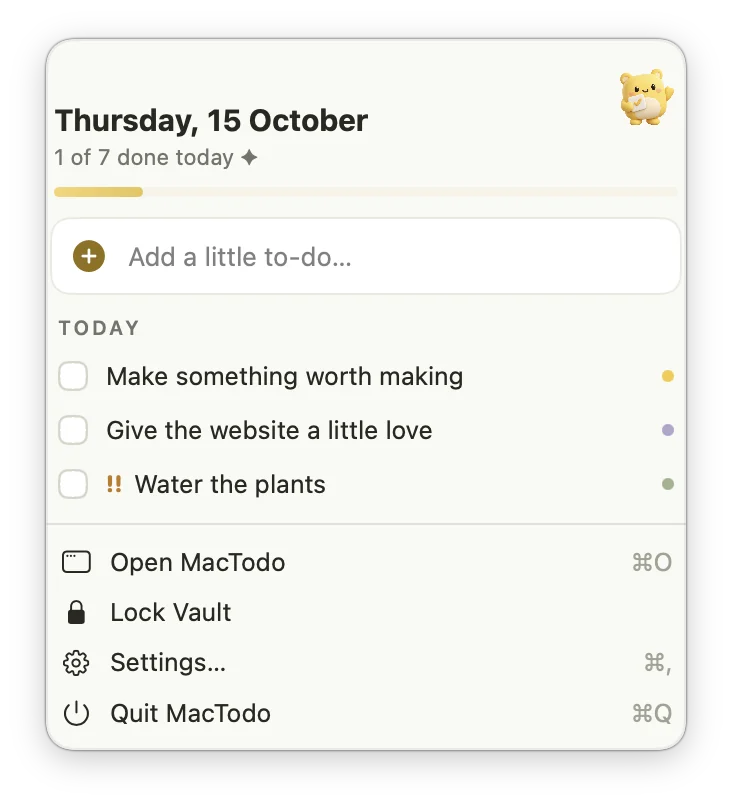
In MacTodo: The My little to-dos widget comes in small, medium, and large, and you check off to-dos right on it. Medium and large show due dates, and large adds a bar for today’s progress. The menu bar window shows today’s date and progress, a quick-add field, and today’s to-dos, and ⌃⌥Space opens a quick-add panel over any app. Type “Call mum tomorrow 6pm” and the reminder is set. All of that is free, with no account.
There are more to-do widgets for your Mac desktop, too. Up next lists your next dated to-dos, Countdown shows a live timer when a reminder is less than a day away, and Month at a glance puts a dot on every day with an open to-do. Repeats, steps, and priorities work the way they do in the MacTodo to-do list.
Be honest about where you use your list. MacTodo is Mac-only, with no iPhone app and no iCloud sync. If you add to-dos on your phone all day, the Reminders widget or a synced app will serve you better.
Use Things 3 as well? Its Quick Entry with Autofill also defaults to ⌃⌥Space. Change MacTodo’s shortcut in Settings so the two don’t clash.
Why are your desktop widgets greyed out?
macOS can fade desktop widgets to monochrome while an app window is active, so they don’t compete with your work. Show the desktop and they return to full color. If you’d rather see color all the time:
- Open System Settings › Desktop & Dock.
- Scroll down to Widgets.
- On macOS Tahoe 26 and later, set Dim widgets on desktop to Never for full color. Always keeps widgets monochrome, and Automatically switches between the two.
- On older versions such as macOS Sonoma 14, the same setting is called Widget style. Choose Full-color.
While you’re there, make sure Show Widgets › On Desktop is turned on. If you use Stage Manager, turn on In Stage Manager too, or your widgets stay hidden until you click the desktop.
Which method should you use?
| Method | Check off on screen? | Watch out for | Best for |
|---|---|---|---|
| Reminders widget | Yes | One list per widget; needs macOS 14 or later | Lists you also use on iPhone |
| Stickies | No, plain text only | Notes hide whenever Stickies quits | A quick scratch list for today |
| Menu bar app | Yes, from the menu | Not visible at a glance | Checking your list all day without clutter |
| To-do app with widgets | Yes, on the widget and in the menu bar | Pick one that syncs if you need your phone | A Mac list with reminders, widgets, and quick add |
Most people end up with two: a widget for the glance and a fast way to add things. Start with the Reminders widget if your list lives on your iPhone. If it lives on your Mac, try an app with a check-off widget and a menu bar list. Choosing from scratch? Our guide to the best to-do app for Mac walks through what matters.
Setting up a new MacBook Neo? Our MacBook Neo widget guide has five desktop layouts you can copy.