To add widgets to a MacBook Neo, Control-click the desktop wallpaper, choose Edit Widgets, and drag any widget from the gallery onto your desktop. The Neo ships with macOS Tahoe 26 and runs macOS 27, and both let widgets live on the desktop as well as in Notification Center.
The trickier part is making them look good on a 13-inch screen. This guide covers setup, sizing, iPhone widgets, the Appearance settings that tint and dim them, and five layouts you can copy as they are. If all you want is your to-do list on screen, our guide to putting a to-do list on your Mac desktop compares every way to do it.
The short answer
- Add widgets with Control-click › Edit Widgets on the desktop, or from Edit Widgets at the bottom of Notification Center.
- Control-click any widget to change its size, edit what it shows, or remove it.
- Turn on Use iPhone widgets in System Settings › Desktop & Dock to borrow widgets from apps that only live on your phone.
- Icon & widget style (in Appearance) and Dim widgets on desktop (in Desktop & Dock) decide how widgets look.
- On a 13-inch screen, three to five widgets along one edge of the desktop is the sweet spot.
Can you put widgets on a MacBook Neo desktop?
Yes. The MacBook Neo, Apple’s 13-inch laptop announced in March 2026, shipped with macOS Tahoe 26.3 and runs macOS 27. Desktop widgets have been part of macOS since Sonoma 14, so the Neo handles them exactly like any other Mac, with the same steps on Tahoe and on macOS 27.
Widgets can live in two places:
- On the desktop, where they sit behind your windows and come forward when you click the wallpaper.
- In Notification Center, which slides in from the right when you click the date and time in the menu bar, or swipe left with two fingers from the right edge of the trackpad.
Many widgets are interactive, too. You can tick off a reminder or a to-do right on the widget, without opening the app.
How to add widgets to your MacBook Neo
On the desktop
- Control-click an empty spot on the wallpaper (or click it with two fingers on the trackpad) and choose Edit Widgets.
- Search the gallery, or click an app in the sidebar to see only its widgets.
- Drag a widget onto the desktop, or click it (or its Add button) to have macOS place it for you.
- Drag your widgets around until they sit where you want them, then click Done in the bottom-right corner.
In Notification Center
- Click the date and time in the menu bar.
- Click Edit Widgets at the bottom of Notification Center.
- Drag a widget to the top right of the screen, or click it to add it. Drag up or down to reorder, then click Done.
Notification Center suits widgets you check now and then, like Weather or Batteries. That keeps the desktop free for the one or two you glance at all day.
How do you resize, move, edit, or remove a widget?
Every widget has a Control-click menu, and that’s where most changes happen.
- Resize: Control-click the widget and pick another size. Most come in small, medium, and large, though some only offer one or two.
- Move: drag it anywhere on the desktop.
- Edit: choose Edit followed by the widget’s name to change what it shows, like which Reminders list appears. If there’s no Edit option, its content can’t be changed.
- Remove: choose Remove Widget. In Notification Center you can also hold Option, hover over a widget, and click its remove button.
A sense of scale helps when you plan a layout. A medium widget is as wide as two small ones side by side, and a large one takes the space of four small ones.
Want everything bigger, widgets included? Open System Settings › Displays and choose a resolution closer to Larger Text. Everything on screen grows, so you’ll fit fewer widgets.
Can you use iPhone widgets on a MacBook Neo?
Yes, as long as your iPhone runs iOS 17 or later, uses the same Apple Account as your Mac, and is nearby or on the same Wi-Fi network.
- Open System Settings › Desktop & Dock.
- Under Widgets, turn on Use iPhone widgets.
- Open the widget gallery. Your iPhone’s widgets now appear next to the Mac ones.
This is handy for apps you only have on your phone, like a fitness tracker or a parcel app. If clicking an iPhone widget asks you to open the app on your iPhone, that app isn’t installed on your Mac. Apple’s guide to Mac widgets has the full details.
How do you change the way widgets look?
Three settings shape how widgets look on the Neo’s desktop. Apple’s MacBook Neo guide covers the Appearance ones under personalizing your Mac.
Icon & widget style
In System Settings › Appearance, the Icon & widget style menu (macOS Tahoe 26 and later) offers Default, Dark, Clear, and Tinted. Tinted washes icons and folders in a color you choose. Clear gives them a glassy, see-through look, which is pretty on a calm wallpaper but can be harder to read. Not every app follows every style yet, so if a widget looks off, switch back to Default.
Dimming while you work
In System Settings › Desktop & Dock, Dim widgets on desktop decides whether widgets fade when an app is in front. Automatically switches between monochrome and full color, Always keeps them monochrome, and Never keeps them in full color.
Wallpaper and folder color
Widgets sit on your wallpaper, so choose one that’s quiet where your widgets go. System Settings › Wallpaper has Apple’s wallpapers, plus Add Photo for your own. Appearance › Folder color tints the folders on your desktop to match.
5 MacBook Neo widget layouts to copy
Each layout uses five widgets or fewer, so it fits the Neo’s 13-inch screen without crowding. Built-in widgets come with macOS, and the MacTodo ones come with the free app unless noted. Keep your widgets along the left edge, since desktop files line up on the right by default.
1. The student desk
For classes, deadlines, and the week ahead.
- Calendar, medium: today’s classes and events.
- My little to-dos (MacTodo), medium: assignments you tick off as you finish them, with due dates. The Reminders widget with a School list works too.
- Countdown (MacTodo), small: a live timer to your next reminder once it’s less than a day away.
- Month at a glance (MacTodo), small: a dot on every day with an open to-do, red when it’s overdue.
2. The workday
For meetings, the day’s list, and what’s coming next.
- Calendar, medium: the day’s meetings.
- My little to-dos (MacTodo), large: your list with due dates and a bar for today’s progress.
- Up next (MacTodo), small: the date and your next dated to-dos.
- Clock, small: only if you work with people in another time zone. The menu bar already shows yours.
3. The minimal
Two widgets, nothing else.
- One list, medium: My little to-dos or Reminders.
- Day progress (MacTodo), small: how much of today, this week, this month, and this year has passed.
- Set Dim widgets on desktop to Automatically, so both fade while you work and come back when you click the wallpaper.
4. The focus layout
For days when only a few things matter.
- My little to-dos (MacTodo), small: keep it to your top three. The Eisenhower Matrix is a quick way to pick them.
- Little wins (MacTodo), small: today’s progress ring.
- Screen Time, small: how your day is really going.
- Turn on a Focus in System Settings › Focus to quiet notifications while you work.
5. The aesthetic desk
For a desk that feels like yours.
- Photos, medium: a favorite memory.
- Sticky note (MacTodo Pro), medium: a pinned note, like a quote or this week’s one goal.
- A little reminder (MacTodo): kind words, in phrases you write yourself.
- Desktop buddy (MacTodo): a friendly face for the day.
- Match it all: a Tinted icon and widget style, a folder color, and a MacTodo mood that suits your wallpaper.
Which widgets are worth the space on a 13-inch screen?
Screen space is the Neo’s tightest budget. A widget earns its spot if you look at it several times a day, or if it saves you opening an app. By that test, these make the cut:
- A to-do widget you can check off. It turns a glance into an action, which makes it the most useful widget on any Mac.
- Calendar, so you know what’s next without opening anything.
- One personal widget, like a photo or a note, so the desk feels like yours.
Weather and Batteries are better in Notification Center, since you check them less often. A Clock widget only earns desktop space if it shows another time zone, because the time is already in the menu bar.
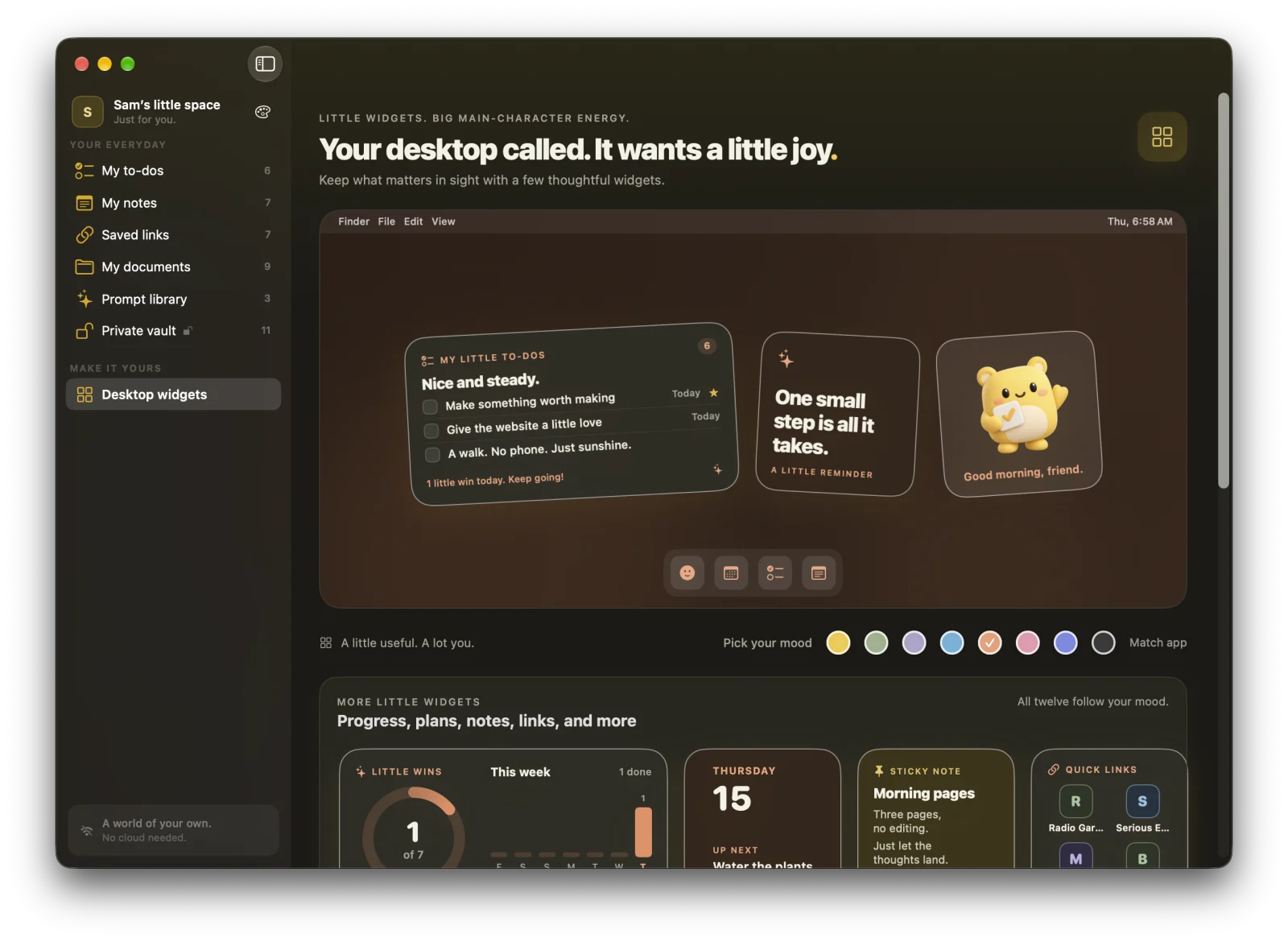
In MacTodo: Twelve widgets, built for exactly this. My little to-dos lets you check things off right on the desktop, and every widget follows one of eight color moods or matches the app theme; Edit Widget gives any one its own mood. The to-do widgets and themes are free, and MacTodo runs on macOS 14 or later, so the Neo is covered. Sticky note, Quick links, and Documents show your notes, links, and files, which are part of MacTodo Pro.
See all twelve to-do widgets for your Mac desktop, how MacTodo’s sticky notes end up on the desktop, and what the to-do list does behind the widget.
Widgets missing or grey on your MacBook Neo? Quick fixes
- They look grey or washed out. Set Dim widgets on desktop to Never in System Settings › Desktop & Dock. If they’re still pale, set Icon & widget style back to Default in Appearance.
- They’ve vanished from the desktop. Check that Show Widgets › On Desktop is on in Desktop & Dock. With Stage Manager on, turn on In Stage Manager too, or widgets stay hidden until you click the desktop.
- Windows cover them. Click the wallpaper to move windows aside, or set a hot corner to Desktop in System Settings › Desktop & Dock › Hot Corners.
- An app’s widget isn’t in the gallery. Open the app once, then look again. Some apps only offer widgets after their first launch.
- An iPhone widget asks for your iPhone. That app isn’t on your Mac. Install the Mac version if there is one.
- There’s no Edit Widgets option. You Control-clicked a file or a window. Control-click a bare spot on the wallpaper instead.
Once your widgets behave, give the layout a week. Remove anything you haven’t looked at, and give that space to the widget you reach for most.